Exporting Presets to Your DCP
If you've created a new preset or set of presets using the Access Tool's editing features, or received a preset from a friend or the Gen-16 website, you'll probably want to store it in your DCP's memory so that it's always available without having to connect your DCP to a computer. You do this by exporting the preset or presets set to your DCP, where it will be stored in flash memory.
Any new preset(s) you export to your DCP will overwrite your existing preset(s) - in the case of a Cymbal or Reverb preset just one; in the case of a Presets Set, all of them. The current factory presets will always be available from Gen-16 in a full firmware updater file and/or a Presets Set in case you want to go back to them, or you can simply import the factory set yourself and save it to disk for future use.
Exporting individual Cymbal presets to your DCP does not affect your existing Kit Presets, but of course they'll sound different with the new Cymbal preset(s) you've installed so you may need to tweak them. Exporting a Presets Set file will overwrite your existing Kit Presets, but they wouldn't sound right with the new cymbal presets anyway!
Exporting a Preset from an Editor WIndow
If you already have a preset or presets set file open in an editor window, it can be exported by selecting "Export Preset(s) to Cymbal Processor" from the File menu or pressing the keyboard shortcut cmd-E. If the menu item is disabled ("grayed out") it means your DCP is not connected or hasn't been recognized on the USB (or that there's no export-able file open). Try reconnecting it if that happens in error.
Loading a Preset or Presets Set File from Disk
Simply open the preset file via the File menu or other means and it will load itself into an editor window, whence it can be exported as described above.
Selecting a Destination for the Preset
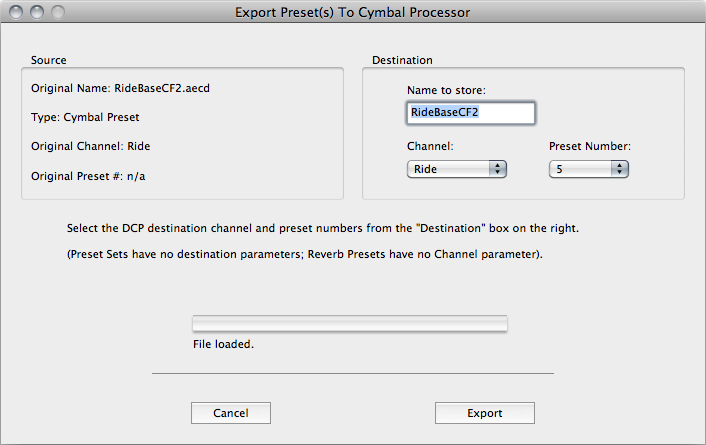
If you've loaded a cymbal or reverb preset (*.aecd or *.aecr file) into the Export window, its "Source" information is shown in the window - its name, type, and the cymbal channel and number for which it was originally designed. Prior to exporting the preset to your DCP, you can select its "destination" - which cymbal channel and which of that cymbal channel's existing presets is to be overwritten by the new preset (a cymbal or reverb preset cannot be "added" or "appended" to the currently-installed presets; it must overwrite an existing preset). Select the destination Channel and Preset Number from the pulldown menus in the "Destination" section. You can also assign a name to the preset, of up to 16 characters. While this name cannot be displayed by the DCP, it is stored in the DCP with the preset's other data and will be retrieved when the preset is imported from the DCP.
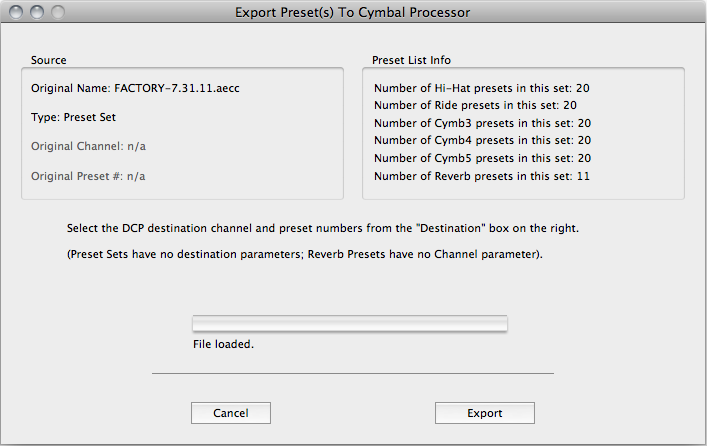
If you've loaded a presets set (*.aecc) file, there is no destination to be chosen since the file's presets will replace the entire set of presets in your DCP. The "Destination" section on the right is changed to "Preset List Info" showing the number of presets contained in the set.
Exporting a presets set file is the only way (other than a firmware upgrade) to change the number of cymbal and/or reverb presets available in the DCP.
Performing an Export
To perform an export, click the "Export" button in the Export window. Do not remove power, disconnect cables, click on any windows or menus, or interrupt the export process once it starts. The progress indicator will show the progress of the export and display the result. If for some reason the export fails, the "Export" button's caption will change to "Retry" and the export can be attempted again.
See also: Gen-16 File Types